
Remote access for any Linux system.
The Remote-RED Agent is a single, small program for Linux. It makes any local web UI securely reachable from anywhere and sends push notifications straight from your scripts to your phone. No Node-RED, no Home Assistant, no port forwarding. Just one binary on any Linux server, NAS, Raspberry Pi or IoT device.
One command, and the agent is installed. Afterwards the script asks whether setup should start right away and walks you through the rest.
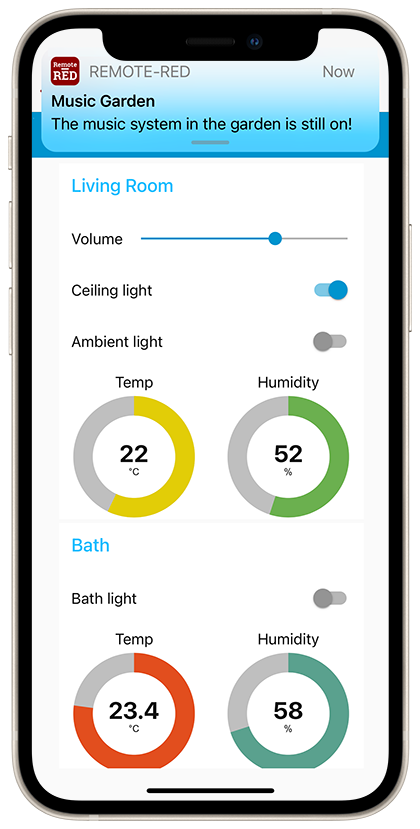
Two things, done well
The agent has a deliberately clear focus. It does two things, and for both the effort would be much higher without Remote-RED.
Many local web UIs reachable from anywhere
Remote-RED makes the web interfaces of many products and applications reachable from mobile. Over the same encrypted SSH tunnel that the Node-RED node and Home Assistant use too. No open ports, no public IP, no VPN hassle. More on this in the local requirements and transferable websites sections of the terms of use.
Push notifications from any script
A single command turns any shell script into a source of native push notifications. Cron jobs, backup scripts, monitoring hooks report straight to your phone. With your own sound, without a webhook service in between: remotered notify --title "Backup" --body "Done, 42 GB".
One device as a bridge for the whole network
One agent can hold several instances at once. It runs on a reachable device and from there also makes the web UIs of other devices on the network reachable, ones that cannot get an agent of their own: NAS, smart home components, IoT boxes. Each appears as its own instance in the app.
No Node-RED, no Home Assistant. Just Linux.
Until now Remote-RED needed either Node-RED or Home Assistant as an underlying layer. The agent puts an end to that. It is a single, statically linked binary, without any runtime dependency.
No runtime needed
No Node.js, no Python version chaos, no extra software. The binary brings everything with it and therefore really runs on any Linux system, even on old distributions and lean IoT devices.
For every architecture
There are ready-made binaries for amd64, arm64 and armv7. From the beefy server down to the Raspberry Pi Zero, it is all there, from a single build.
Runs as a system service
One command sets up a hardened systemd service under its own unprivileged user. The agent opens no inbound ports on the host whatsoever. The tunnel goes strictly outbound.
As secure as the rest of Remote-RED
All connections run over HTTPS with public-key pinning, plus an SSH host-key check baked into the binary. Exactly the same mechanisms as in the apps, the Node-RED node and the Home Assistant integration.
Script-friendly exit codes: 0 sent, 1 limit or input error, 2 network problem. With --quiet, cron stays quiet too.
What you use it for
The agent is for anyone who runs a service on a Linux system and wants to reach it from anywhere, or hear from it.
Device makers with a local web UI
Your controller, machine or IoT box already comes with a web interface, but no app? This is exactly where the agent shines: you ship it on the device, and your customers get remote access and push notifications through the ready-made Remote-RED app. Without you having to build your own app, server infrastructure or cloud.
Partner program for series products
Combined with the partner program, the agent is ideal for devices produced in series. You provision each device with a single command, and the QR code for access can go straight onto the type plate or into the manual. That means no in-app purchases for your users. Your own app with your branding adds the final touch.
Admins & homelab
You have a server, a NAS or a Raspberry Pi with a few web interfaces and want to reach them from anywhere, without opening ports or setting up a VPN. The agent tunnels them securely into the app and pings you via push when something goes wrong.
From a blank server to the app in minutes
Install, set up, pair, run it as a service. Here you find every step, plus the most important commands and how to keep the agent up to date later.
1. Installation via get.remote-red.com
The installation script detects your system's architecture, downloads the matching binary, verifies its SHA-256 checksum and puts it into /usr/local/bin/remotered. One command is enough:
After that remotered is available system-wide. If the installation runs in a real terminal, the script asks right afterwards whether setup should start now. With curl | sh it instead just shows you the command to run yourself.
Architectures
amd64, arm64 and armv7 are detected automatically. From the server to the Raspberry Pi.
No package mess
No apt, no Docker needed. The binary has no dependencies.
Easy updates
Once installed, an update is simple via 'remotered self-update'.
2. Overview of the commands
One binary, all tasks. Every command also has detailed built-in help.
| Command | What it does |
|---|---|
remotered setup | Sets up a new instance: registers it, asks for name and target URL and shows the QR code to pair the app. |
remotered edit | Changes the local configuration of an existing instance, such as name or target URL. Server, credentials and app pairing stay untouched. |
remotered remove | Removes an instance from the device again. |
remotered qr | Generates a fresh QR code to pair another phone or to renew a lost pairing. |
remotered run | Runs the tunnel daemon in the foreground. This is what the system service runs in the background. |
remotered notify | Sends a push notification to the paired apps. |
remotered status | Shows the connection status of all instances. With monitoring-friendly exit codes. |
remotered service | Manages the systemd service: install, uninstall, start, stop, restart, status. |
remotered self-update | Updates the binary in place, checksum-verified. |
remotered version | Shows the installed version. |
--help to any command to see all options with an explanation, for example remotered setup --help or remotered notify --help. Running remotered on its own without arguments lists all available commands.3. Set up, change and pair
The three commands you need most often when getting set up. Interactively guided, or as a one-liner for series production.
remotered setup always creates a new instance. After installation the script offers to start it right away in the terminal. But you can always call it yourself. Without arguments it asks you step by step for display name, region, target URL of the local web UI and agreement to the terms of use. At the end it shows the QR code that you scan with the Remote-RED app.
For series production everything also runs completely without prompts as a one-liner, including the partner details from the partner program and output of the QR code as a PNG file:
remotered edit <id> only changes the local configuration of an existing instance, that is display name and target URL. Server, credentials and the already paired app stay untouched. Exactly the right way to quickly switch the target port.
Without flags, edit asks interactively and suggests the current value each time. With flags it runs through without prompting, ideal from scripts.
remotered qr generates a fresh QR code for an existing instance, without changing the configuration. Use it when you want to pair a second phone or a previous pairing has been lost. Remember to make your terminal wide enough.
With exactly one instance you can omit --instance. With --qr-png <path> you also save the code as an image file.
4. Run it as a service
So the tunnel stays up permanently and comes back automatically after a reboot, the agent runs as a systemd service.
Set up with install
remotered service install creates its own unprivileged system user, sets the file permissions correctly, installs the hardened systemd unit and starts it. The command can be run any number of times and repairs the permissions along the way.
Control
start, stop and restart control the service without you needing to know the unit name. status shows whether the unit is running.
Check the connection
For the actual tunnel status you use remotered status. It reads the last known state and works even while the service is stopped.
Remove cleanly
remotered service uninstall stops and removes the unit. Your configuration and the state are deliberately kept, so nothing gets lost unintentionally.
The service opens no inbound ports and runs with systemd hardening under its own user.
5. Keep it up to date with self-update
Updates are a single command. The binary is replaced, the checksum verified, your configuration and pairings stay untouched.
One command
sudo remotered self-update downloads the new version, verifies its checksum and replaces the binary. Nothing about config.toml or the state is touched.
Check first
With remotered self-update --check you only see whether a newer version is available, without changing anything. The exit code is directly suitable for cron or monitoring.
Pin a version
With --version 1.0.0 you install a specific version on purpose, for example to roll back to a known state.
Restart afterwards
A running daemon keeps using the old binary until it is restarted. So after the update, run sudo remotered service restart once. The app reconnects on its own.
Alternatively, running the installation script again is enough. Both ways do the same thing.